As Purchaser or Editor, the story prompts you choose set the tone for the book. We have hundreds of questions in our catalogue to choose from, or you can add your own custom question.
Sometimes a question from our catalogue may inspire a question that works even better for you. For instance, our question "What are your favourite memories of your grandmother?" may not work for your family, so you may prefer "What are your favourite memories of your grandfather?". Great! Write that as a custom question.
Story prompts are always added in the Stories section of the dashboard. Click on the "Add Prompt" icon in the Stories section to bring up the Add Prompt Window.
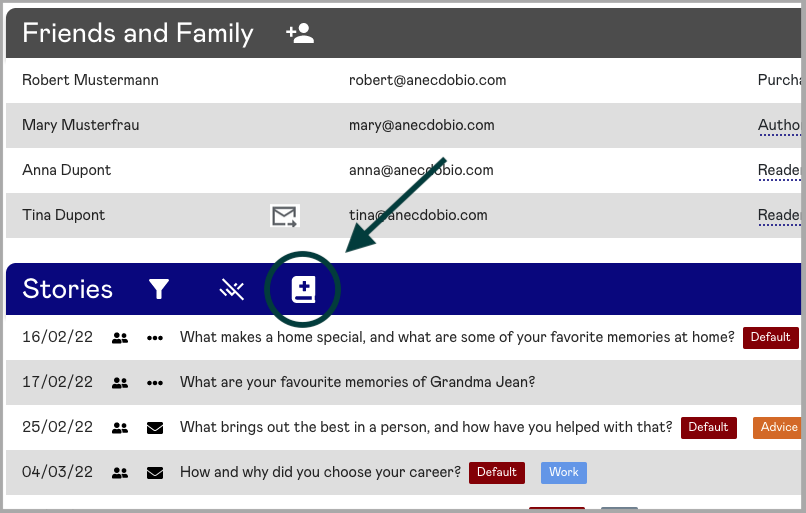
Click the Add Prompts icon to manage the upcoming story prompts to be sent out.
The Add Prompt Window is broken up into a few different sections. "A" shows our catalogue of questions. You can filter by category if you like. "B" shows where you can type in your custom question. "C" shows your Current Story Prompts, which are questions that are selected to be sent. Use the arrows (circled in the image below) to move prompts to and from your Current Story Prompts selection.
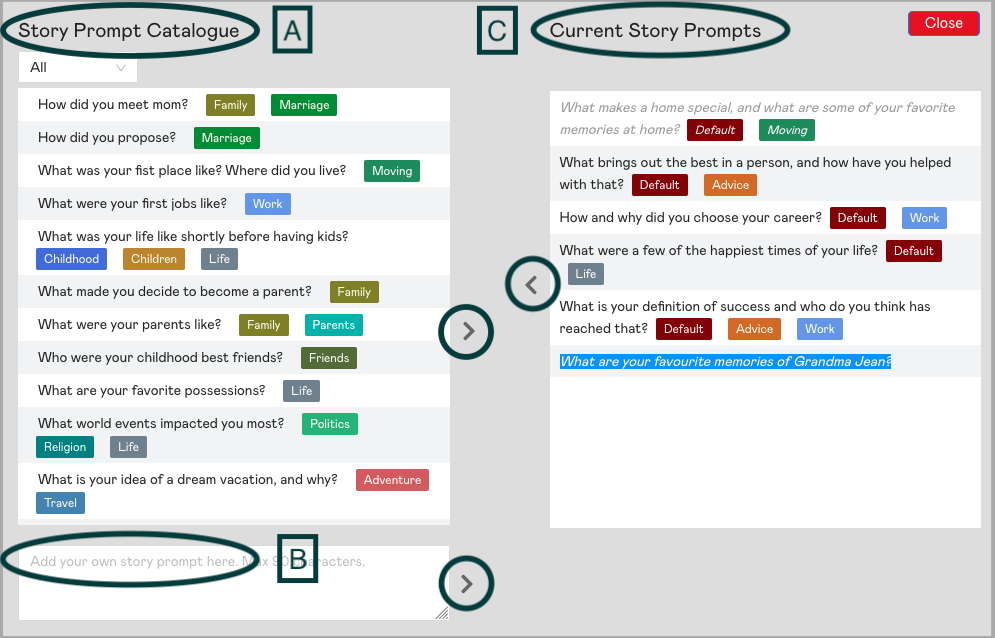
The left side of the window shows potential story prompts, the right side shows story prompts selected to be sent.
Once story prompts have been sent to the Author, they appear in gray in the Current Story Prompts section. This way they cannot be removed. Questions in black can be removed from the Current Story Prompts section by using the arrow icon. In this example, the first three questions have already been sent, so are in gray.
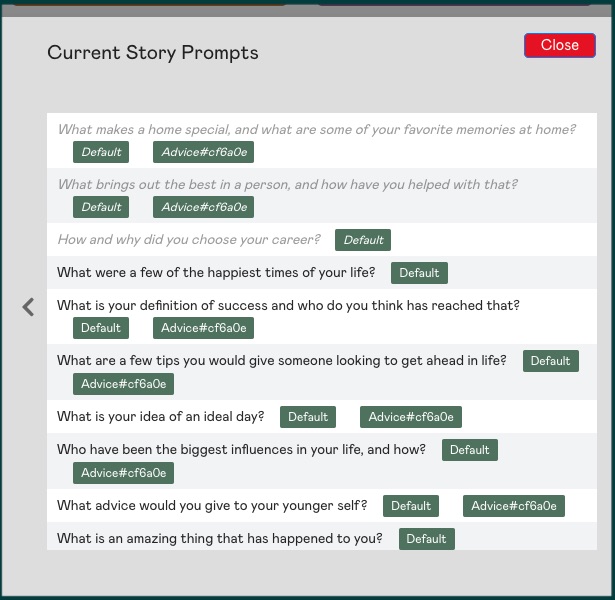
Story prompts that have already been sent out are in gray. Those in black are scheduled to be sent.
|
Rate this Topic:
|
|||
|
