The Stories section is the heart of the Anecdobio dashboard. This is where, most importantly, Authors can write their stories and add their photos. It's also where the Purchaser and Editors can select upcoming story prompts or write their own prompts.
Based on what type of user you are, here is how to make the most of the Stories section:
For Readers
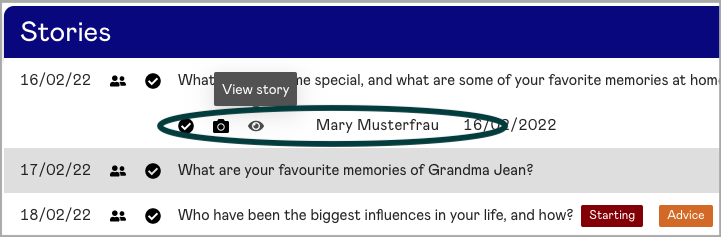
Click on a story to see the which Author or Authors have submitted a story to a particular prompt. Then click on the Author's name to read the story, or click the camera icon to view any submitted photos.
For Authors
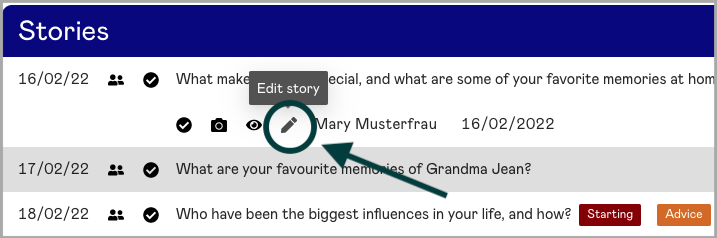
Click on a story and then the edit pencil icon to bring up your answer window. This is where you can add your story and any pictures. Once you click the Save and Submit button, you'll notice there will be a check mark next to your name for that story. You're done! Of course, if you want to make further edits to your story, you can always do that by clicking the edit pencil icon again.
For Guest Users
Depending on the type of access given to you by the Purchaser or Editor, you will either be able to read certain stories or act as an Author to a story. First click on the story title. If you see your name and an edit pencil icon, you can act as an Author for that story. If you see another Author's name, you can read their submitted story.
For Editors and Purchaser
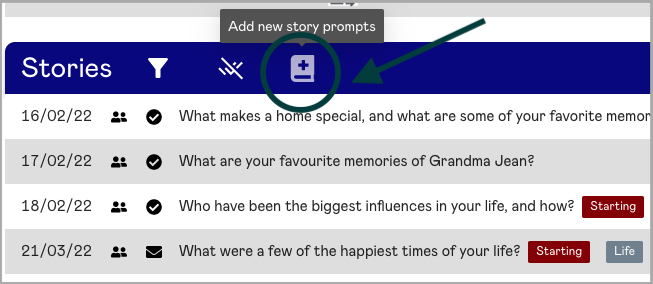
You can select upcoming story prompts for the Author by selecting the Add Prompts icon at the top of the Stories section. From here either add story prompts from our library or write your own.
You can also sort upcoming questions by clicking the up/down arrow on the right-hand side and dragging the story in to the right order.
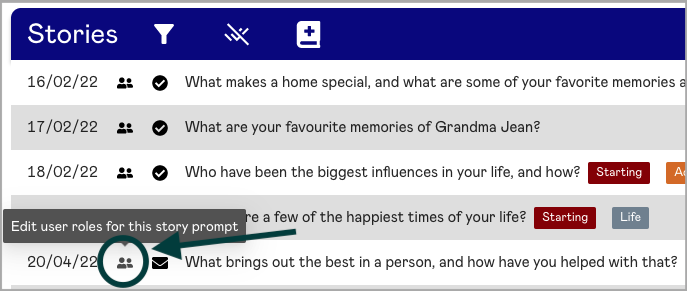
For each upcoming story you can also change the rights a user has. For instance, if you want to give a Reader the opportunity to write a story for a particular prompt, you can do that by clicking the people icon next to the date. This brings up the roles window where you can change roles for users for that particular story prompt.
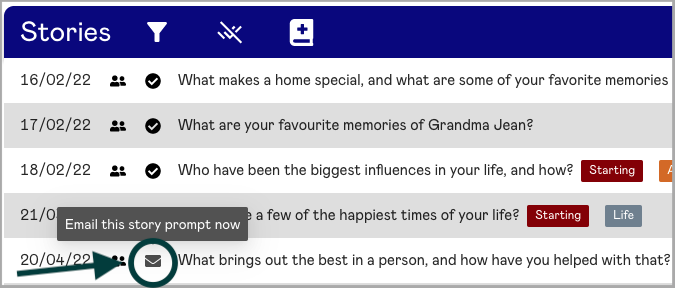
Should you want to send an unsent story prompt to the author(s) immediately, you can do that as well by clicking on the envelope icon.
|
Rate this Topic:
|
|||
|
